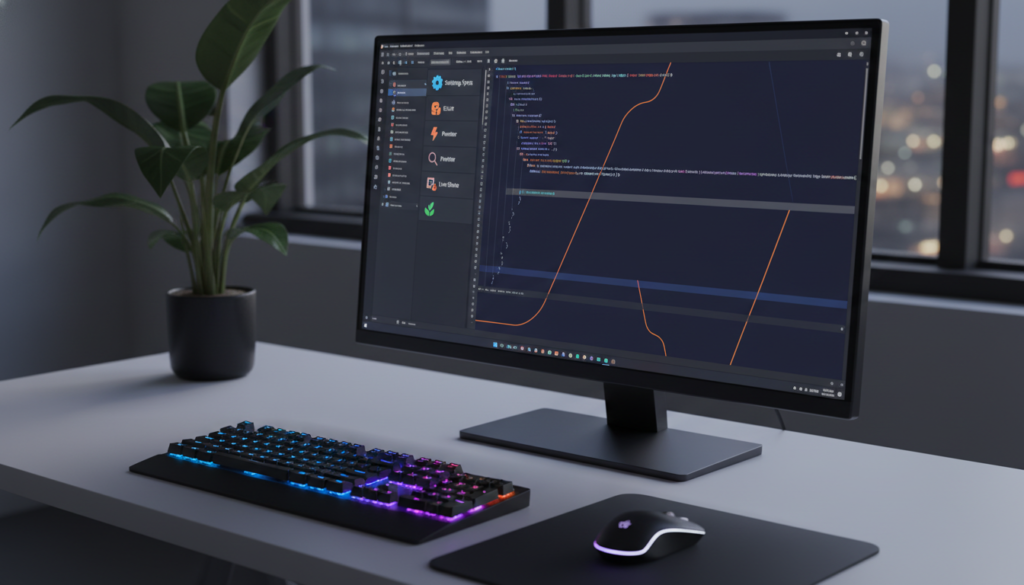
So, you have finally done it. You decided to stop playing Roblox and start building it instead. You went to the official VS Code website, hit that big blue download button, and installed the industry standard for writing code. You feel like a hacker. You feel powerful. You open the application, ready to build the next Facebook or Fortnite, and then… you just see a dark gray screen with a blinking cursor.
It is a little intimidating, right? It feels like staring into the void.
Here is the secret that every senior developer knows but rarely admits. VS Code, straight out of the box, is basically just a fancy Notepad. It is like buying a high-end gaming PC and using it to play Solitaire. The real magic happens when you start accessorizing. We call these extensions.
I have been writing content and coding for 25 years, back when we had to type code into plain text files and pray it worked. You guys have it easy. Today, I am going to walk you through the absolute essentials. These are the tools that will save you hours of headache and make you look like a pro, even if you are just writing your first “Hello World.”
If you are looking for more advanced guides on setting up your developer environment or finding the right laptop for coding, we have a treasure trove of resources over at beemytech.com that you should bookmark right now.
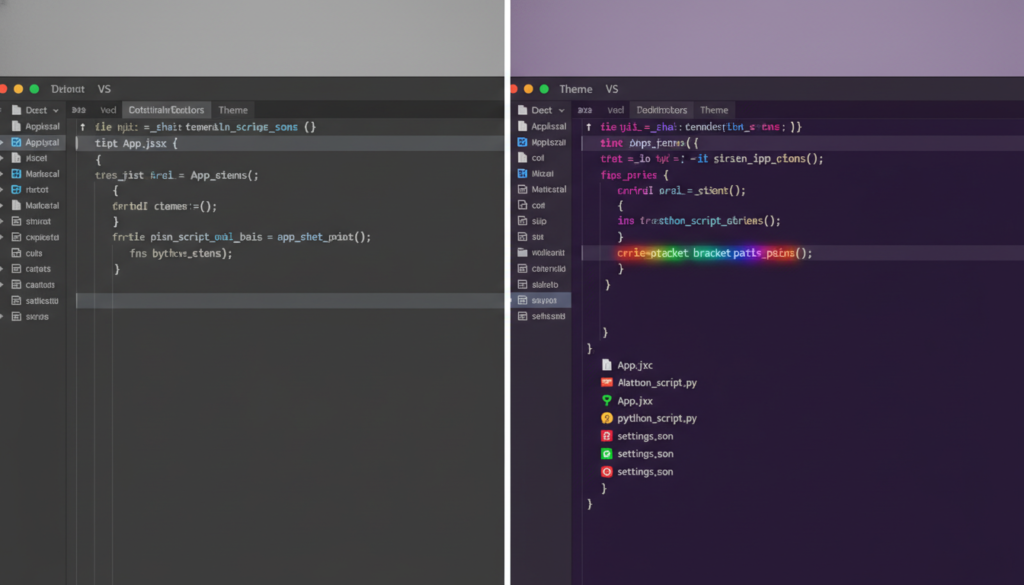
1. Making It Look Cool (Because Aesthetics Matter)
I am not joking. If your editor looks boring, you will get bored. If your editor looks like the control panel of a spaceship, you will want to sit there for hours. Step one of becoming a coder is looking the part.
Material Icon Theme
When you start creating files, VS Code gives them generic, boring little icons. An HTML file looks the same as a CSS file, which looks the same as a JavaScript file. It is a mess. You need the Material Icon Theme.
This extension changes those boring icons into bright, recognizable logos. The React logo looks like the React atom. The Python logo looks like the Python snakes. It helps your brain instantly recognize what file type you are working with. Plus, it just looks clean.
One Dark Pro or Dracula
You are going to be staring at this screen for a long time. You need a color theme that is easy on the eyes. The default theme is fine, but we can do better. Dracula Official is a fan favorite because it uses high-contrast colors that pop against a dark background, making it super readable at 2 AM when you are fueled by energy drinks.
Another classic is One Dark Pro. It offers that slick, professional look you see in YouTube tutorials. If you want to dive deeper into desk setups and how to make your coding station look like a sci-fi movie, check out the gear recommendations on beemytech.com.
2. The “Mom” of Extensions: Prettier
Imagine you just wrote a 500-word essay, but you did not use any paragraphs, periods, or capital letters. It would be a nightmare to read, right? That is what beginner code usually looks like.
Enter Prettier – Code Formatter.
This is non-negotiable. You need this. Prettier is an extension that automatically cleans up your messy code every time you hit save. It adds the semicolons you forgot. It fixes your indentation so everything lines up perfectly. It adds spaces where they belong.
I cannot stress this enough. Coding is hard enough without trying to read messy text. Install Prettier, go to your settings, and check the box that says “Format On Save.” Now, whenever you press Ctrl+S (or Cmd+S), your code snaps into place like magic. It is the most satisfying feeling in the world.
3. Live Server: Instant Gratification
When you are learning HTML and CSS (the building blocks of the web), the workflow usually sucks. You write some code, save the file, go to your browser, hit refresh, realize you messed up, go back to code, fix it, save, go back to browser, hit refresh… repeat until you lose your mind.
Stop doing that. Install Live Server by Ritwick Dey.
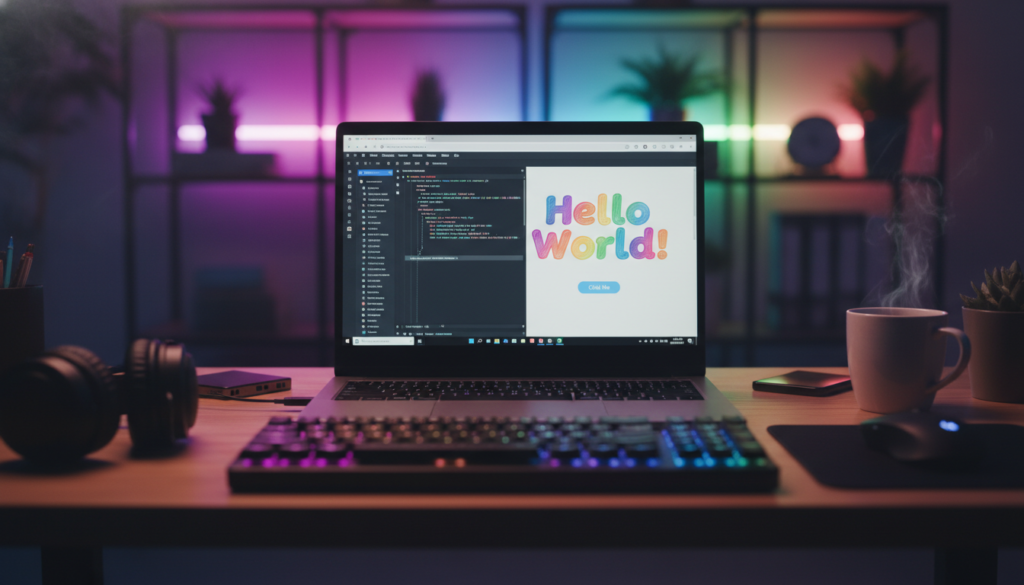
This extension creates a local development server on your computer. With one click, it opens your website in the browser. Here is the kicker. As soon as you type code and hit save, the browser automatically updates without you touching it. You can put your code on one half of the screen and your browser on the other, and watch your website build itself in real-time. It is a game-changer for learning.
For more tips on optimizing your workflow so you can spend less time refreshing and more time creating, we have some excellent productivity hacks over at beemytech.com.
4. Auto Rename Tag
This one sounds boring, but trust me, it is a lifesaver. In HTML, tags come in pairs. You have an opening tag like `
` and a closing tag like “. If you decide you want to change that `div` to a `section`, you have to change it in two places. If you forget the second one, your whole website breaks.
Auto Rename Tag does exactly what it says. If you rename the opening tag, it automatically renames the closing tag to match it instantly. It saves you keystrokes and prevents silly errors. It allows you to code at the speed of thought.
5. Bracket Pair Colorizer (Now Built-In!)
Okay, a bit of history here. We used to have to download an extension called Bracket Pair Colorizer because when you have code that looks like `((({[]})))`, it is impossible to know which bracket closes which block. It is affectionately known as “callback hell.”
VS Code actually realized this was so essential that they built it directly into the software recently. However, you need to make sure it is on. It colors matching parentheses with the same color (e.g., the outer ones are yellow, the inner ones are pink, the innermost are blue). If you are looking at a code tutorial and getting confused about where a function ends, this visual aid is your best friend.
6. Fun Stuff: VS Code Pets & Power Mode
Who said coding has to be serious all the time? Sometimes you are stuck on a bug for three hours and you just want to cry. That is when you need emotional support.
VS Code Pets allows you to put a small cat, dog, or even a snake in a little panel inside your code editor. You can throw a ball to them, and they will run across your screen. It adds absolutely zero productivity value, but it keeps your morale high. And honestly? Morale is half the battle.
Then there is Power Mode. You know when you are playing a video game and you get a combo streak, and the screen starts shaking and sparks fly everywhere? Power Mode does that for typing. Every time you type a letter, particles explode on your screen. Is it distracting? Yes. Is it incredibly fun for about 15 minutes? Absolutely.
7. Error Lens: The Strict Teacher
If Prettier is the nice mom who cleans your room, Error Lens is the strict teacher who yells at you immediately.
Normally, if you make a syntax error, VS Code puts a tiny red squiggly line under the text. It is easy to miss. Error Lens takes that error message and prints it right next to the line of code in big, bold text. It tells you exactly what is wrong as you are typing it.
It can be a little annoying at first because it yells at you before you even finish the sentence, but it teaches you to write clean code faster than any other tool. It prevents that moment where you stare at the screen for 20 minutes wondering why your app crashed, only to realize you forgot a comma.
Conclusion: Just Start Breaking Things
The biggest mistake beginners make is spending two weeks setting up their environment and zero minutes actually coding. Do not fall into that trap. Install these 5 or 6 extensions, pick a cool theme, and then just start building.
Go make a website about your dog. Make a calculator. Make a text adventure game. It does not matter if it is terrible. We all wrote terrible code at the beginning. The only difference between a senior developer and a beginner is that the senior developer has failed more times than the beginner has even tried.
If you get stuck, or if you are ready to move on to more complex topics like JavaScript frameworks or backend development, keep checking beemytech.com. We are constantly updating our guides to help you navigate the tech world without the jargon.
Now, go write some code. And don’t forget to save.